How to manage passwords well and securely?
The accounts we have on internet services can't be counted on the fingers of both hands. Using a login and password, we get into government sites, banks and social networks. How do you remember all these logins, passwords and PINs? Surely we won't have a single password for all services. Right?
Table of contents
- Do I have to worry about this?
- How am I supposed to know that someone knows my password?
- What can I do to manage passwords better?
- Which password manager should I choose?
- How to create passwords?
- Is keeping passwords in the cloud safe?
- Is forcing a password change safe?
- Remember two-factor authentication
- Keys are better than typing in a code
- Logging in with a Google or Facebook account
- Biometrics instead of a password
- How to share a password with someone securely?
Do I have to worry about this?
If you have one password for many services and you think it's safe, you can email it to me and I'll use it myself.
If, however, you want to change this state of affairs, read this post to the end. Imagine you have one password for your bank, a photo storage service and some browser game. And now there's a leak of the password and login, from just one of these services. At that moment cybercriminals have access to the remaining sites. And that's no longer cool.
But I don't have anything important there. They won't steal anything from me.
A sentence like this often comes up when I suggest someone change their password to a harder one. Indeed, they won't steal anything from your mail or site, apart from your identity. From such a hijacked email or blog, cybercriminals will be able to send out SPAM or use your site, e.g. for phishing attacks.

Explaining before a court that it's not you robbing people but someone who broke into your site and used it to defraud money is certainly a less pleasant and more time-consuming thing than changing your password to a hard and complicated one.
How am I supposed to know that someone knows my password?
You never know this a hundred percent, but you can check which sites your data leaked from. One such service is ';--have i been pwned?. You just enter an email address there (not necessarily your own) to check whether there's been a leak of data associated with that account.
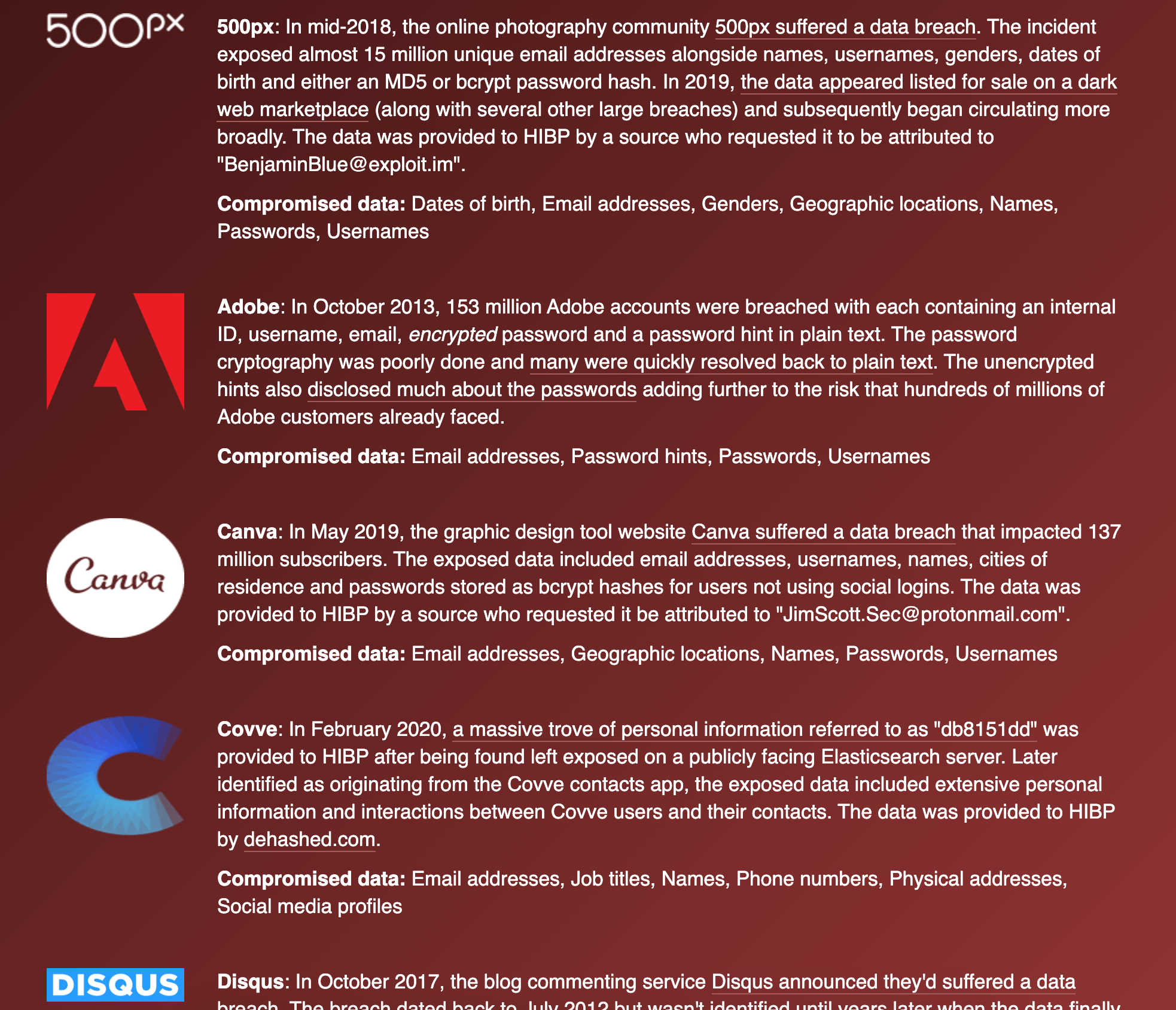
This service also has the option of notifying your email address if such a leak occurs. I myself have to admit that I didn't remember which services I had a given email address with, and I only remembered when I got a notification about a password leak.
In such a case, having different passwords for many services is much safer. Not having passwords at all is also a good solution.
What can I do to manage passwords better?
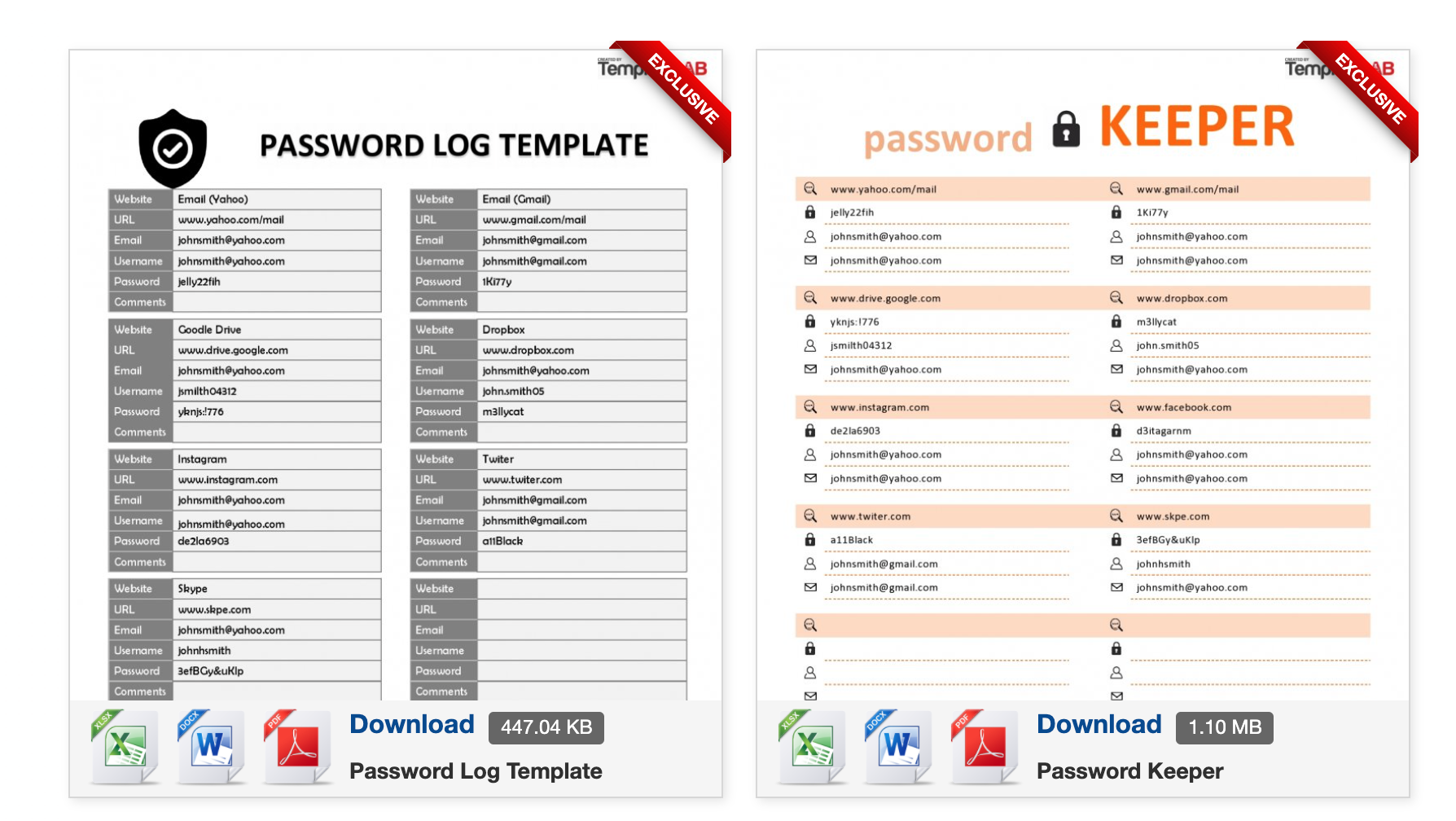
If we have hard, random passwords for many services, it will be difficult for us to remember them. Saving all passwords in an Excel file isn't a good solution, and unfortunately it still happens. Passwords in such documents are stored in plain text, and in the event of such a file leaking, everyone will have access to your services.
Another method is a password manager - special software that lets you manage passwords securely. It's certainly not a notebook hidden in a drawer with passwords written in it.
A good solution is storing passwords in your Google account. Using, e.g., the Google Chrome browser, you'll be able to save a password securely. This service will also let you check the quality of passwords and whether they haven't been stolen or cracked.


Which password manager should I choose?
On the market we really have many available and good password management programs. There are ones that work completely offline and ones that store passwords in the cloud. So far I've used tools such as:
Currently I use the BitWarden software, which is available for computers and mobile devices. It lets you synchronise passwords across all devices, so that we have access to them practically from every place we need.
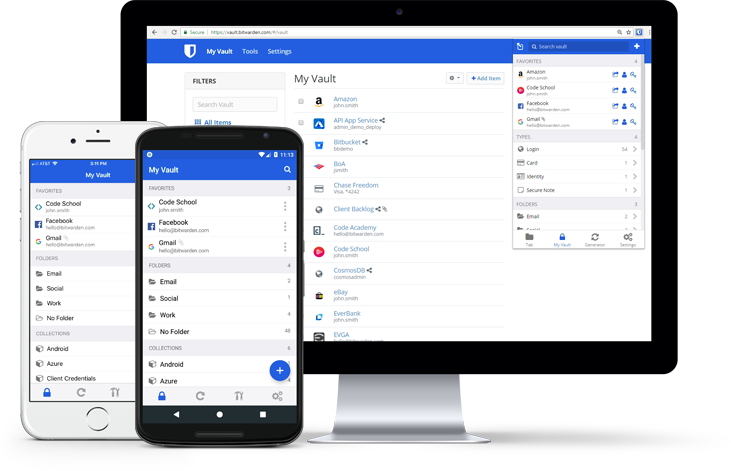
- a tool for checking password quality,
- monitoring whether a given password hasn't leaked from some service,
- reporting that we use a given password on many different sites,
- access to passwords from the app, the console or the browser,
- sharing passwords with other users or groups - great for storing shared passwords in companies, instead of an Excel file,
- logging into the app using Active Directory (LDAP), Azure, G Suite, OneLogin, and Okta,
- two-factor authentication
- and many others.
For a long time I used the 1Password app, until they changed their pricing model, which many people didn't take to.
How to create passwords?
Since you already have a password manager, use its built-in system for creating random and hard passwords. It will take care of creating passwords for you.
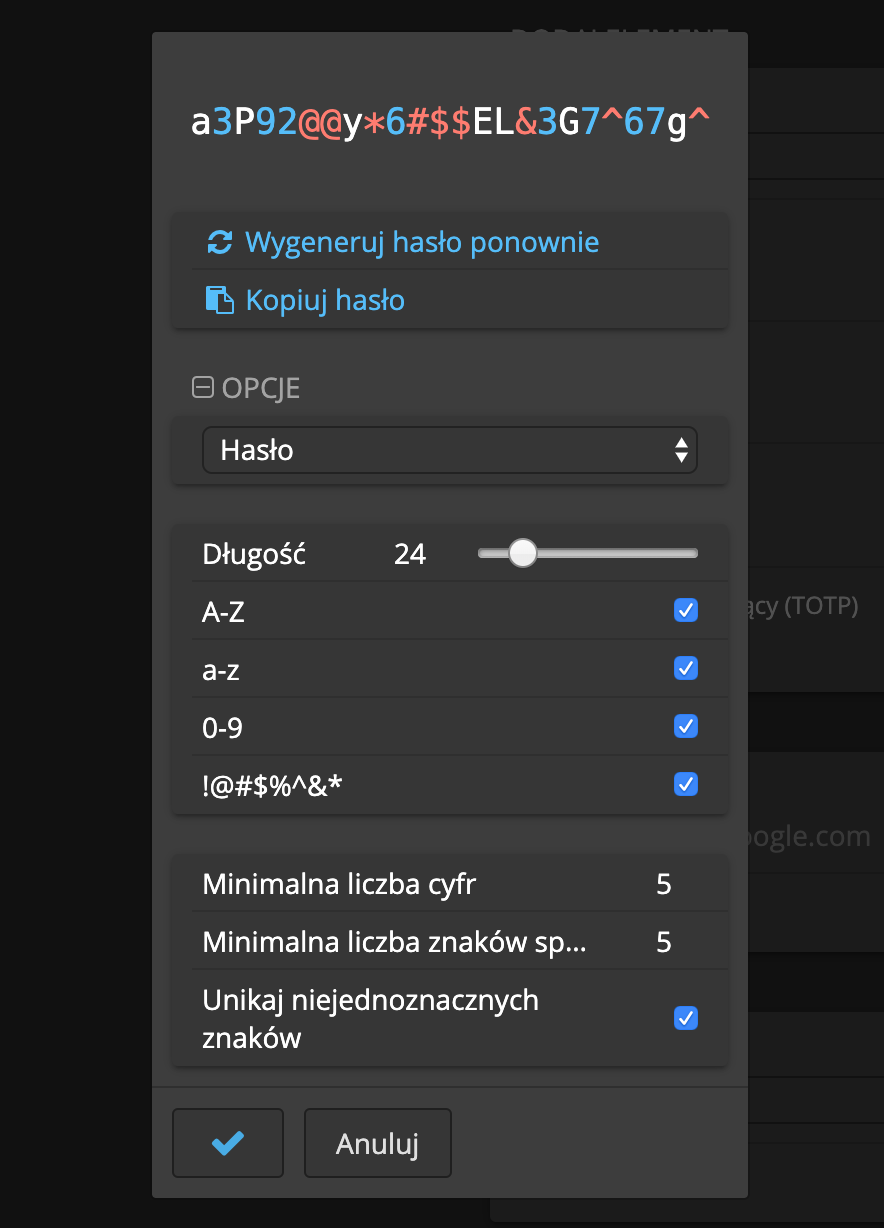
This way there's no need to come up with complicated methods of creating passwords - the software does it for us. If, however, we want to create passwords ourselves, we have to remember certain rules:
- the password must be non-dictionary - qwerty, qazqwe or luty123! are passwords that appear in the dictionaries used for cracking passwords,
- don't use patterns when creating passwords - a password like MyAllegro123, MyFacebook123 allows the next passwords to be guessed if one of them is cracked,
- the password must be long and complicated - the longer it is, containing more characters, the safer it is - attackers are able to check millions of passwords per second.
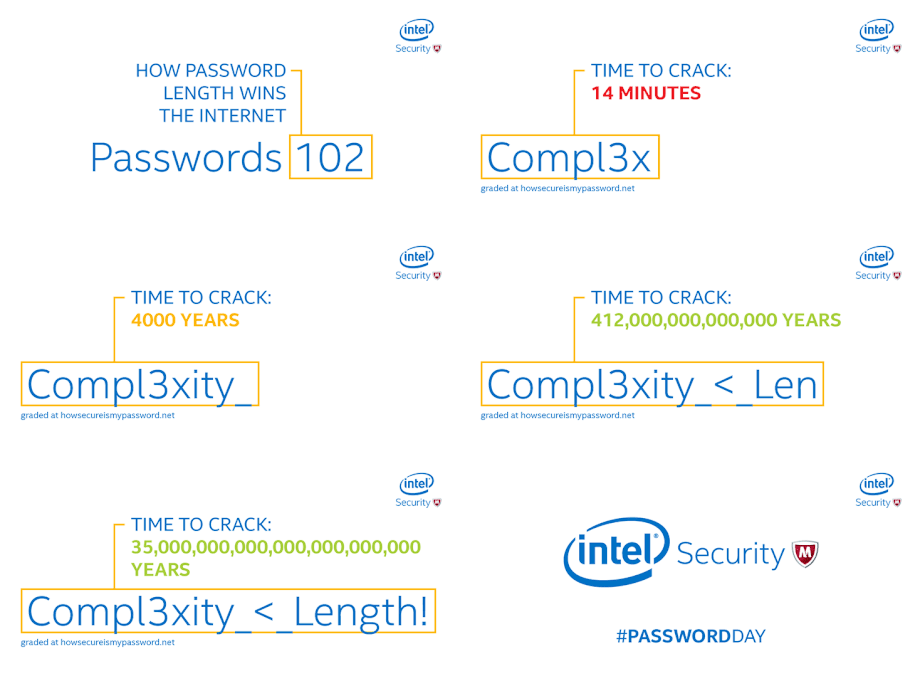
As you can see in the attached animation, cracking a simple password is really easy and doesn't take much time. The more complicated the password - the safer it is.
A secure password policy according to CERT Poland is:
- No forced periodic changing of user passwords
- Blocking the creation of a password that's on the list of weak/commonly used passwords
- Blocking a password containing predictable parts (e.g. company name, service name)
- Minimum password length – at least 14 characters
- A character limit in the password of no fewer than 64 characters
- No additional complexity criteria, e.g. special characters, digits or capital letters
Unfortunately, not all internet services allow the use of arbitrarily long passwords or special characters.
How to create strong passwords? Use your imagination!
Building a strong password doesn't have to be difficult at all. A good way is to create whole sentences that are easy to remember but hard to crack. Note: it's better to avoid well-known quotes and sayings. Instead, you can draw inspiration from your own imagination and create something unique.
Your password should have at least five words. An example inspired by sailing:
CaptainPaddlesFastInAGreenDinghy
Or in a diving theme:
ThreeMermaidsDanceByTheWreck
Another effective method is to describe an imaginary, funny scene that sticks in the memory. Ideally it should contain something absurd or unrealistic — this makes cracking the password by matching associations harder. Example:
ASharkPlaysGuitarByTheLighthouse
Want to raise the level of security even more? Weave words from several languages into the password! This further hinders cracking such a password, because most attacking tools are based on one language. A mixed example:
DiveTresFastOnABlueWave
Remember: the best passwords are the ones that are easy for you to remember and practically impossible for others to guess.
Is keeping passwords in the cloud safe?
Yes. And it's certainly safer than writing them on a piece of paper or having one password for many sites. Apps like BitWarden store passwords in the cloud securely, e.g.:
Since all of your data is fully encrypted before it ever leaves your device, only you have access to it. Not even the team at Bitwarden can read your data, even if we wanted to. Your data is sealed with end-to-end AES-256 bit encryption, salted hashing, and PBKDF2 SHA-256.
Passwords are encrypted with secure algorithms - or so the creators assure us. If we don't believe them, we can set up our own synchronisation and password-storage server, in the case of BitWarden.
Is forcing a password change safe?
In many requirements concerning the security of IT systems you can find recommendations like this:
Password policy, forcing a password change every 30 days; if other systems used by employees don't force password changes, the employee is obliged to change their password themselves, at least every 90 days.
Changing a password at set intervals is meant to increase the security of the system if we use simple and short passwords. When the current password is cracked, you're already using a different one in that system.
Unfortunately, people prefer to take shortcuts and make life easier for themselves, which is why forcing a password change ends up in the creation of certain patterns that are easy to discover. Users forced to change passwords create increasingly simple and formulaic ones, or save them in an unsafe place. Discovering the pattern for creating a given password makes it easier to learn the next passwords, e.g.: passwords like June2020!.
Remember two-factor authentication
Enabling two-factor authentication allows you to protect your account in the event of a password leak. That's why, to raise the level of security, you should enable this protection on every service that offers it, e.g.:
- Gmail
If we use the BitWarden app, it will inform us which services we haven't yet enabled this authentication method on.
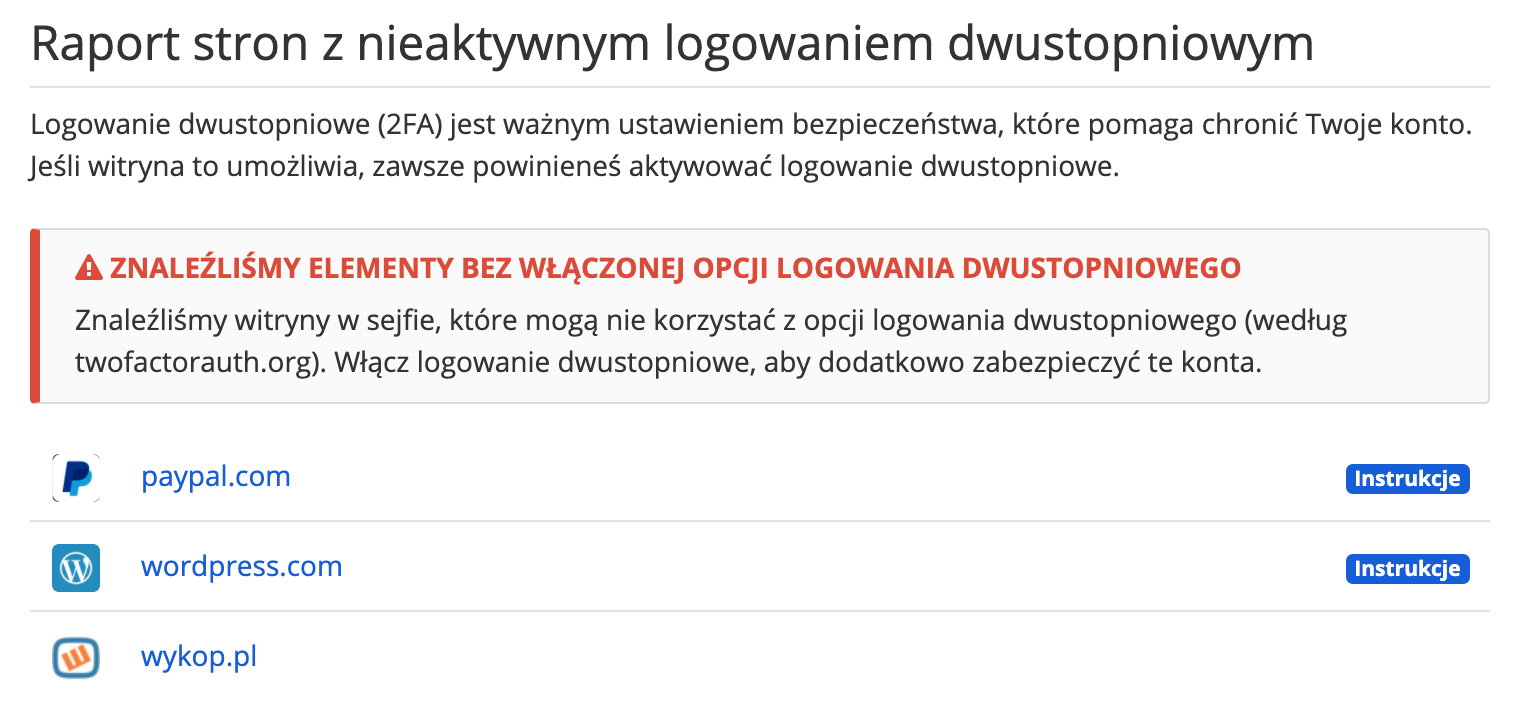
The most popular solutions are: the Google Authenticator or 2FAS app and YubiKey hardware keys. Two-factor authentication using keys is definitely more secure and resistant to certain attacks. A list of services that support two-factor authentication is available on the website twofactorauth.org.
Keys are better than typing in a code
If you already have two-factor authentication enabled, e.g. using an app that generates one-time codes or SMSes that are sent to you, switch them to hardware keys. Unfortunately, solutions of this kind, although they're secure, are still vulnerable to phishing attacks, to which keys are resistant.
A cybercriminal can make a duplicate of your SIM card and intercept the code, or set up a site on which you'll enter the code from the app. With physical U2F keys they won't manage to do this.
That's why I recommend getting two keys and adding them instead of the methods mentioned above. Why two?
- one key you always carry with you and use it to log in to apps normally,
- the other you keep safely hidden as a spare, in case you lose the first one.
After adding both keys to the system, you disable other authentication methods like an app or SMS! The keys I recommend buying are:
And what about a mobile phone? Both keys support NFC, which means that when you log in from your phone, you just bring the device close to the key and you'll be logged in.
Logging in with a Google or Facebook account
In today's world, where almost every online service requires creating an account, it's easy to get lost in the thicket of logins and passwords. Fortunately, there are solutions that make this significantly easier. We're talking about so-called identity providers.
Thanks to them, managing user identities takes place in one place, and logging in to various services becomes fast and convenient. An example? Single Sign-On (SSO) – a mechanism that allows you to use one account to gain access to many systems, without needing to re-enter your password.
You can use the account you have with Google or social networks to log in to other companies' sites and apps. Thanks to this you don't have to remember usernames or passwords for individual accounts.
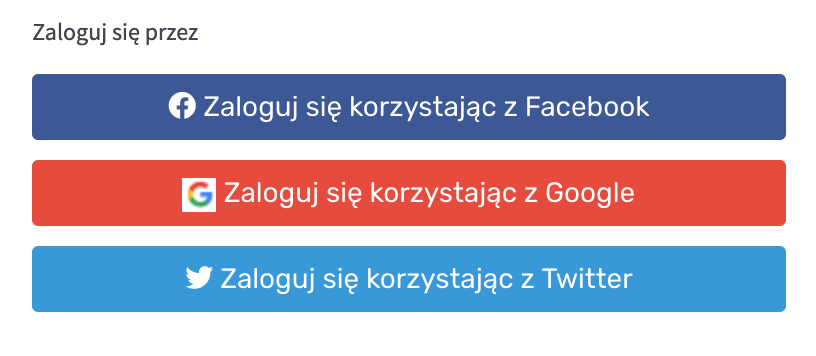
Another popular solution is OAuth. It's thanks to it that we can log in, e.g., to a music service using an account on a social network. One click and we're logged in — without the need to create a new profile and another password to remember.
Such technologies not only save time, but also increase security, because the user looks after only one password — and a well-protected account is the foundation of safe use of the Internet.
Biometrics instead of a password
Biometrics is a method of authentication that uses something you don't have to remember – your unique physical features. Most often we come across a fingerprint, a face scan or an iris image.
Thanks to the wide availability of biometric devices in phones and computers, as well as many years of perfecting this technology, today it's not only convenient but also very secure. Instead of entering passwords, a touch of a finger or a glance at the screen is enough.
It's worth remembering, however, that not all systems and devices support biometric authentication. Besides — although it's a great solution in many cases — it won't always be the best choice, especially where the highest level of security is required.
How to share a password with someone securely?
Sometimes situations arise where you want to share login details with your client or a friend, or maybe an employee? How do you do this securely? Best of all using the previously mentioned password managers.
You can also use a service like onetimesecret.com. It's a free service for sharing sensitive information.
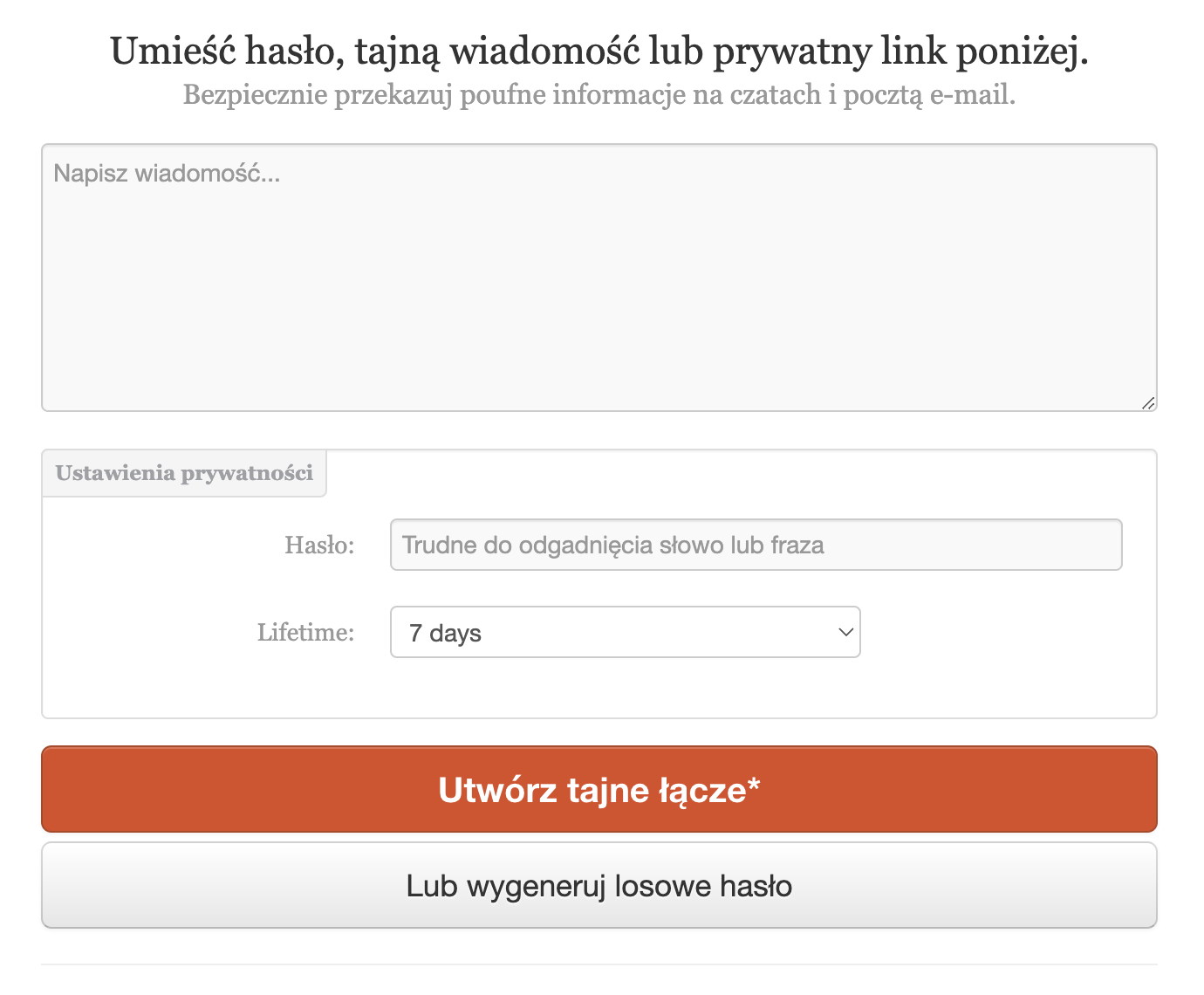
You enter the secret message, password and login in the message field and then encrypt it with a password. You send the link to this message via your favourite messenger, and the password to it via another channel, e.g. by SMS or by calling the recipient.
View related articles
How do procedures and checklists make work easier?
Procedures, checklists and writing down tasks accompany me at every step: from work and hobbies to various duties. These three amazing tools make the day have more hours, mean that boring, repetitive things started being done by automated processes, and made delegating tasks simpler.

IT outages happen to everyone
For the past few hours the internet messenger Slack has been down. A few weeks ago you couldn't use Google's services, and even earlier a large part of the Internet wasn't working because of an outage of Cloudflare's services. Is it possible that cloud services are unavailable?
The Eisenhower Matrix, or how to take control of priorities
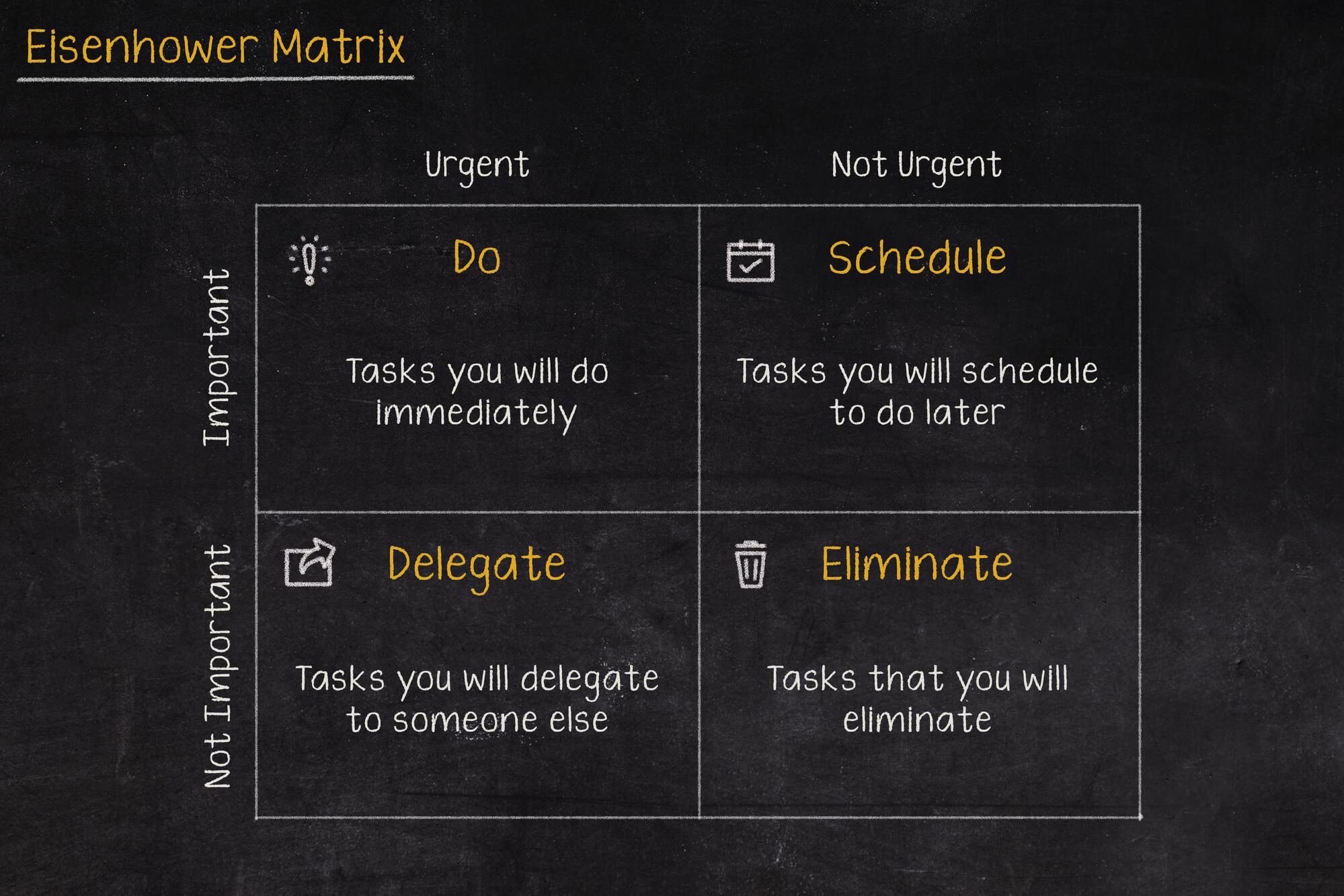
Go on a break, or maybe reply to that email, or pick up the phone from your boss? In what order should you tackle these tasks so as not to lose control and fall into helplessness? The solution to these problems may be the Eisenhower Matrix (also called the Eisenhower Box or Eisenhower Square).